
Short answer: An Android app’s version name is a display label. Its version code is an internal number used in version ordering.
Those fields answer different questions. A label such as 2.7.1 helps people discuss a release, while a code such as 207010 helps Android distinguish builds within an application’s version system.
Neither field establishes the publisher’s identity, proves that an APK is safe or shows that a website has the newest supported release.
For an application described as “Yono,” first identify the exact package and publisher. This guide does not assign real version values to any particular Yono app. Every numerical example below is fictional and included only to explain record comparison.
What Is a Version Name?
The Android versionName field is a string used as a user-facing release label.
It might look like 1.4, 2.7.1 or 3.0-beta. Developers choose its format, so you should not assume every application follows the same numbering convention.
A three-part label often resembles major, minor and patch numbering, but that resemblance does not prove the publisher follows semantic versioning.
Android’s official documentation distinguishes this display string from the integer version code. Android versioning documentation.
For record keeping, copy the label exactly. Preserve suffixes, spaces and punctuation. Changing “2.7-beta” to “2.7” removes information that might distinguish a test release from a production one.
Also record where you found the label. Text on a download page is a publisher or website claim; metadata read from a specific APK describes that file.
What Is a Version Code?
The versionCode field is an internal integer associated with an Android release.
It does not need to resemble the version name. A developer could label an app 2.7.1 while assigning code 431.
You cannot reliably calculate one field from the other unless the developer documents its numbering scheme.
A larger code has meaning within the relevant application and release context. It is not a universal measure of software age.
For example, code 9000 in one package does not make that application newer than an unrelated package using code 120. Their developers may use entirely different sequences.
The code should therefore be recorded alongside application identity rather than in isolation.
Why Package Identity Comes Before Version Comparison
Two applications can display the same title and version name while having different package IDs.
If one file identifies itself as com.example.carddemo and another as com.example.carddemo.test, they are different Android application identities. These package names are fictional examples.
A record comparison should stop short of calling one an update for the other merely because the titles resemble each other.
Signing identity also matters when evaluating an update. Android requires a matching application ID, compatible signing identity or valid signing rotation, and an acceptable version code relationship. Android app-update requirements.
A higher code alone cannot establish that a file can update your installed application.
A Practical Comparison Table
Assume the following records use the same fictional application ID unless otherwise stated.
| Record A | Record B | What the comparison supports |
|---|---|---|
| Name 2.4, code 240 | Name 2.5, code 250 | B has the higher internal code |
| Name 2.4, code 240 | Name 2.4, code 241 | Same display label, different internal code |
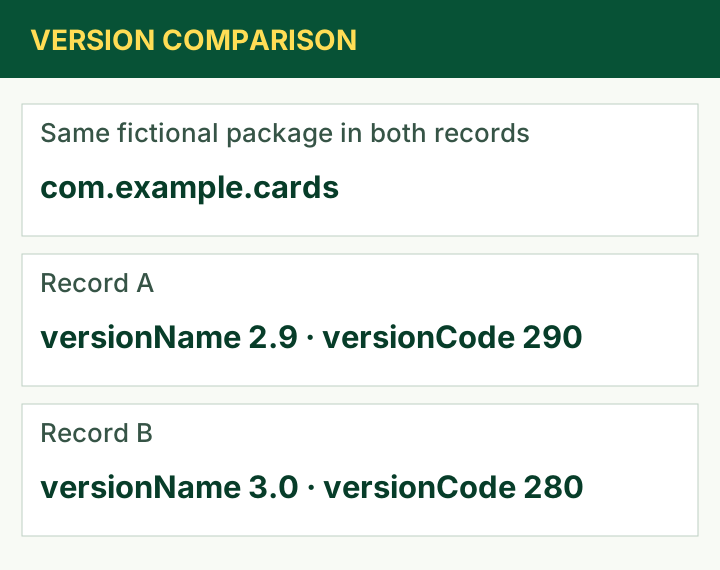
| Name 2.9, code 290 | Name 3.0, code 280 | B’s higher-looking label does not make its code higher |
| Name 2.5, code 250 | Different package, name 9.0, code 900 | These are different application identities |
| Name 2.5, code unknown | Name 2.5, code 250 | The available evidence is incomplete |
| Same name and code | Same name and code | Metadata matches; file identity remains unproven |
The final row is important. Two APKs can share the same visible version fields without being byte-for-byte identical.
Do not turn a limited match into a broader claim than the evidence supports.
Worked Example 1: A Website Says “New Version”
Your installed app reports version name 4.1. A website advertises 4.2.
At this point, you know only that the labels differ.
Before describing the download as an update, establish the package ID, publisher relationship and file metadata. Then compare the internal code and signing compatibility.
If the installed code is 410 and the downloaded code is 420, the code ordering is consistent with a newer build within that package’s scheme.
If the downloaded code is 405, the higher-looking name does not change the lower internal ordering.
Your editorial record should state the observed fields rather than repeating the website’s “latest” claim as verified fact.
Worked Example 2: Matching Names, Different Codes
Two users report version name 3.6, but one record shows code 360 and the other shows 361.
The matching name does not prove that their installed builds are identical.
A publisher may have produced a revised build without changing the display label, or the records may refer to different distribution contexts. Investigate the source and supported release details before deciding why they differ.
For support, the useful statement is: “Both show version name 3.6; their internal codes differ.”
That gives the developer a precise starting point without inventing a release history.
Worked Example 3: Different Devices Show Different Releases
One phone’s store listing may offer a release that another phone does not currently receive.
Device targeting and release availability can affect which update Google Play offers. Do not assume that the phone showing the larger code has a release suitable for every other device.
Record the phone model, Android version, distribution channel and observation time.
Avoid copying an APK between devices solely to make the labels match. Compatibility and account recovery need their own checks.
A version comparison can document a difference; it does not automatically explain the difference or provide an installation recommendation.
Where to Find Reliable Version Records
Start with the installed app’s About or Settings page, then inspect Android’s App info screen. The details exposed vary by application and device.
A support diagnostic screen may show more fields. If it does, record the labels exactly rather than assuming every number displayed is a version code.
For technical inspection of an APK file, Android provides apkanalyzer, including commands for application ID, version name and version code. Official APK Analyzer command reference.
With Android SDK tools already available, the relevant read-only commands are:
apkanalyzer manifest application-id example.apk
apkanalyzer manifest version-name example.apk
apkanalyzer manifest version-code example.apk
Here, example.apk is a placeholder filename. These commands inspect metadata; they do not install the application or certify its safety.
For an ordinary support enquiry, installing additional inspection tools may be unnecessary. Send the fields already available and mark the missing ones as unknown.
Keep a Record That Separates Evidence from Claims
A useful release record includes more than two version fields.
| Field | Example or recording guidance |
|---|---|
| App title | Copy the displayed title |
| Publisher | Record the verified listing identity |
| Package ID | Exact application ID, if available |
| Version name | Preserve the full string |
| Version code | Record the observed integer |
| Source | Installed app, APK metadata or website claim |
| Distribution channel | Store, publisher website or another source |
| Device context | Phone model and Android version |
| Observed at | Date and time of your check |
| Verification limits | Note missing or unconfirmed fields |
“Observed at” is not the same as “released on.” You may inspect an older file today.
Likewise, a page’s updated date does not prove that its download changed on that date.
These distinctions are especially useful when maintaining an article’s version table. They prevent an editorial timestamp from being mistaken for a publisher’s release announcement.
Matching Version Fields Do Not Prove Authenticity
A package can contain a plausible application ID and familiar version name. Those values alone do not establish who created it.
A complete-file checksum can show whether two files match, provided the comparison value is trustworthy. It does not independently identify an unknown publisher.
Signing evidence addresses another part of the question. Even then, you need a trusted reference and must account for legitimate signing arrangements or rotation.
Keep the claims separate: metadata comparison, file comparison, signing continuity and publisher verification are related checks with different limits.
An article should not call an APK “verified safe” simply because its version name and code match a table.
Frequently Asked Questions
Is the version code always visible in Android Settings?
No. Devices and applications expose different details. Record it as unknown if you cannot obtain it reliably.
Does a bigger version code mean better features?
No. It establishes internal ordering within the relevant context, not feature quality, stability or privacy.
Can two versions share the same version name?
Yes. The display label and internal code are separate fields, so identical names do not establish identical builds.
Should I replace my app whenever I find a higher code?
First verify the publisher, update compatibility and supported distribution channel. Preserve your Player ID and recovery method before changing an installation, especially when using a guest account.
What should a public version table say when evidence is missing?
Use clear labels such as “not provided” or “not independently confirmed.” A precise incomplete record is more useful than an invented number or an unsupported “latest version” badge.
Sources
Identify the package first. Compare display labels, internal codes, source records and signing context separately.