
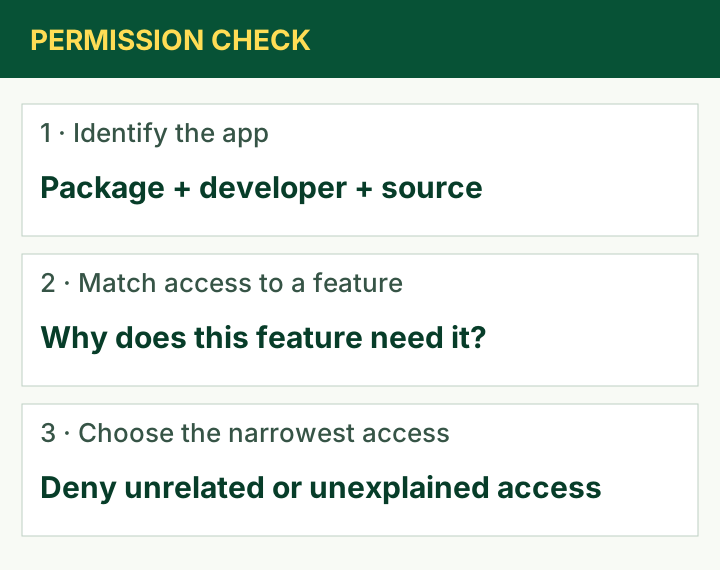
Short answer: When a Yono game app requests an Android permission, check three things: which application is asking, what information it wants to access, and which feature needs that access.
A familiar icon or reassuring message does not answer those questions. Different applications may use similar names, and permission requests can change between versions.
This guide does not claim that a particular Yono application requests any of the permissions discussed below. It explains how to inspect your installed app and evaluate requests in context.
The aim is to make a practical decision about each permission rather than accepting every prompt together.
Confirm the App Before Reviewing Its Permissions
Open Android’s App info page for the installed application. Record its title, version and developer or store details where available.
If the app has a store listing, compare that listing with the publisher you intended to use. A package ID can help distinguish apps with similar names, although a package ID alone does not prove who published a file.
Be particularly careful when instructions come from a different website or support account. Advice for one Yono-branded app may not apply to another.
Record the download source as well. A store-installed release and a separately downloaded APK may not represent the same build, even if they display matching names.
Once the application is identified, permission findings become meaningful records rather than observations about an ambiguous label.
How to Find App Permissions on Android
On many Android phones, open Settings → Apps → See all apps → select the app → Permissions.
The page normally separates allowed and denied permissions. Tap an entry to review the choices available on your device.
Google documents this process, while noting that settings vary with Android version and device. Google’s Android permission guide.
Some permissions offer choices such as access only while using the app or a one-time allowance. Use the narrowest option that supports the feature you actually want.
Changing a permission may affect that feature. For example, denying microphone access can prevent voice recording, while leaving other functions available if the app supports that separation.
Do not assume that a permission is necessary just because an application repeatedly asks for it.
Match Each Request to a Specific Feature
| Permission or access | Possible feature explanation | What to check |
|---|---|---|
| Camera | Taking a profile photo or completing an identified verification flow | Did you initiate that feature? |
| Microphone | Optional voice chat or audio messages | Is voice functionality documented and wanted? |
| Photos and videos | Selecting an avatar or support screenshot | Can you share only the selected file? |
| Contacts | Finding friends or sending invitations | Is access optional, and whose data is involved? |
| Location | A documented location-dependent feature | Why is that precision and duration needed? |
| SMS | A phone verification implementation | Is broad inbox access actually necessary? |
| Notifications | Game reminders and account messages | Which notification categories do you want? |
These are possible explanations, not confirmation that any specific app offers the associated feature.
A permission makes more sense when requested at the moment you invoke a related function. A camera prompt after selecting “Take photo” has a clearer context than the same prompt immediately after opening a card table.
Camera, Microphone and Media Access
For a profile photo, consider whether the app lets you choose an existing image. Android provides mechanisms that allow apps to receive selected media without broad access to the entire library. Android guidance on minimising permission requests.
If you choose to share a screenshot with support, inspect it first. Account details, notifications and unrelated personal information may be visible.
Microphone access deserves a similarly specific explanation. If you do not use a voice feature, there may be no reason for you to enable it.
The same reasoning applies to camera access for identity verification. A camera permission does not establish that the operator is authorised, that verification is required or that uploaded documents will be handled appropriately.
Confirm the application and the purpose before beginning any sensitive document workflow.
SMS Access and Login Codes
An app may explain an SMS request as a way to read a verification code automatically. That explanation should be examined rather than accepted as proof that broad SMS permission is required.
Google provides an SMS Retriever approach that supports automatic verification without requesting SMS-reading permission. Whether a particular application implements that method is a separate question. Google SMS Retriever documentation.
Look for a manual code-entry option. If available, it may let you complete login without granting inbox access.
Never give a login code to someone claiming to be support. Enter it only into the verified sign-in flow you initiated.
Also distinguish SMS access from notification access. An app with access to notifications may be able to see sensitive information displayed by other apps, depending on what those notifications contain.
Location and Contacts Need Clear Explanations
If location is requested, read whether the app wants approximate or precise location and whether access continues beyond active use.
An operator may cite regional availability or another location-dependent function. That is a claim to verify against the app’s documentation, not independent proof that the service is permitted in your location.
Granting precise location does not certify the app’s legality or business practices.
Contacts access can expose information about other people as well as yourself. If the purpose is inviting a friend, check whether a share link or manual invitation works without granting access to the address book.
An optional social feature should be evaluated according to whether you intend to use it. There is no need to enable it simply because the option exists.
Review Special Access Separately
The ordinary Permissions screen is not the whole picture. Android also has settings for forms of special access.
Examples can include accessibility services, notification access, display over other apps and permission to install unknown applications. Their names and locations differ across devices.
Accessibility access can be particularly powerful. Google explains that enabling restricted settings may expose sensitive information, including through accessibility functionality that can read screen content and interact with apps. Google guidance on restricted settings.
If a game or someone claiming to support it asks for accessibility access to fix login, activate a bonus or release a balance, pause and verify that request through the established publisher.
Do not treat instructions to bypass a restricted-setting warning as a routine troubleshooting step.
Installation Permission Is Different from Game Permissions
Permission to install unknown apps is usually associated with the browser or file manager opening an APK.
That permission allows the source application to request installation. It does not give the installed game approval to access your microphone, contacts or location.
It also does not authenticate the downloaded APK.
When recording an audit, keep these findings separate. “The browser can install APKs” and “the game can access the camera” describe different applications and different capabilities.
This distinction helps avoid misleading statements such as “all permissions are off” when special access or installer settings have not been reviewed.
Permissions and Data Safety Describe Different Things
Android permissions describe access controlled by the operating system. A privacy policy and a store’s Data safety section describe the developer’s stated data practices.
They are related, but they are not interchangeable.
An app may receive information that you type directly, such as an email address, without needing a contacts permission. It may also communicate over the internet without presenting the same kind of runtime prompt used for the camera.
Conversely, access to a device feature does not automatically mean the resulting information is transmitted to a server.
Google describes Data safety as information supplied by developers about how their apps collect, share and handle data. It should not be presented as an independent security certification. Understanding Google Play Data safety.
Make a Simple Permission Record
Record the app version, Android version, permission, current setting and the feature associated with the request.
For example: “Camera denied; requested after selecting profile photo; photo feature not used.” That is more informative than “camera permission suspicious.”
After an update, compare new requests with your previous record. Ask what feature changed and whether the publisher explains it.
Avoid asserting that a new permission proves malicious behaviour. It is a reason for a focused review, particularly if the request is unrelated to the features you use.
Frequently Asked Questions
Does denying permissions make an app completely safe?
No. It limits specific access, but does not establish trustworthy ownership, secure code or appropriate handling of information you submit directly.
Does revoking permission delete uploaded data?
No. Revocation controls future device access. For information already submitted, check the operator’s deletion process and retention policy.
Should I enable everything if the game will not open?
First identify which denied permission causes the problem and ask for a documented explanation. Enabling every permission at once makes it harder to understand the requirement.
How often should I review permissions?
Review them when installing, when a new request appears and after a material update. Keep the review tied to actual app behaviour rather than treating permission count alone as a safety score.
Sources
Record each permission alongside the app, feature and version. Review special access separately.